
Why AI interfaces need fresh 508 thinking
Section 508 of the Rehabilitation Act is non-negotiable for federal systems. The Revised 508 Standards point at WCAG 2.0 AA as the technical baseline; in practice, WCAG 2.2 AA is the target most programs now hold themselves to. Assessors, IPAs, and the agency accessibility offices have years of experience evaluating traditional web applications against those standards.
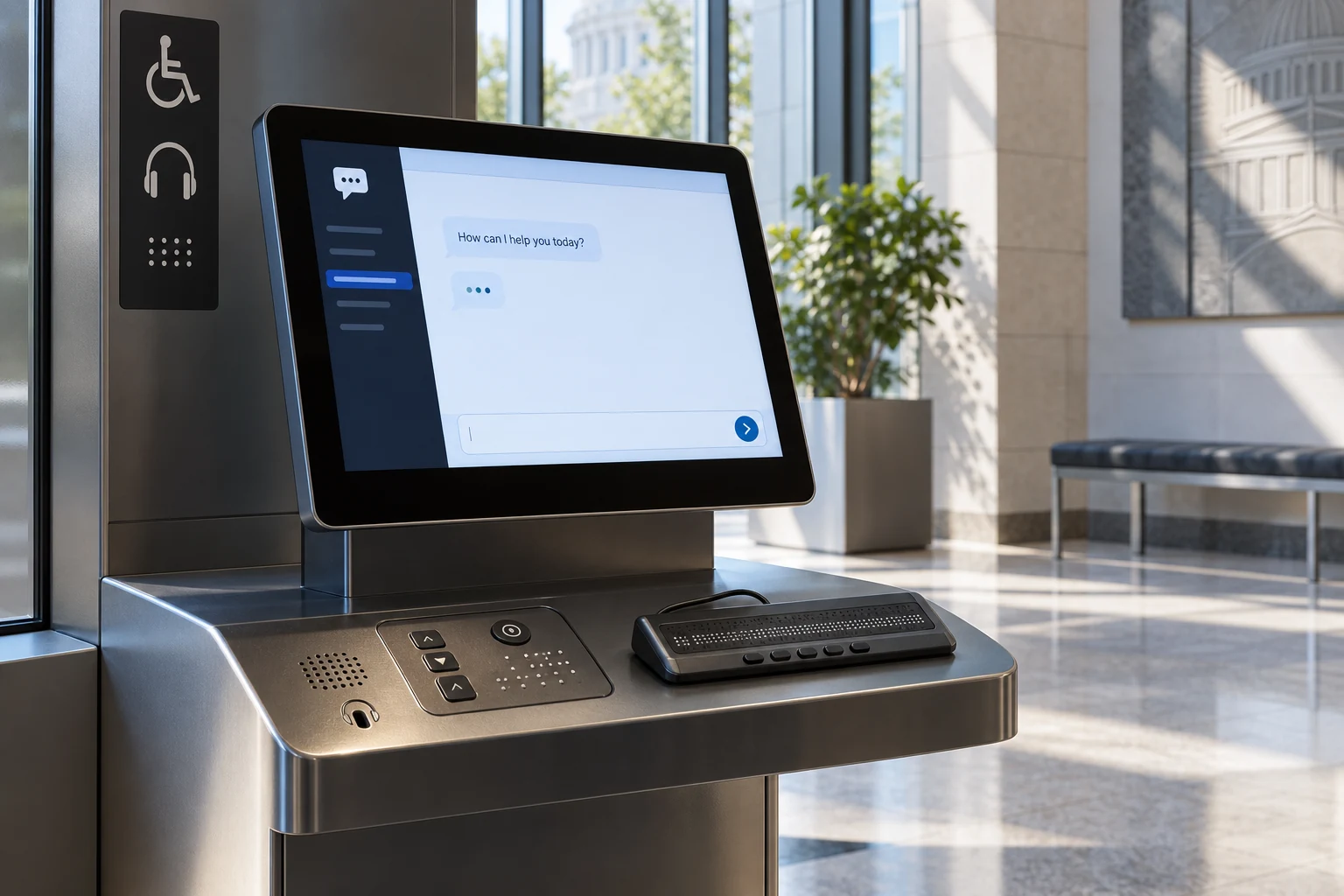
AI interfaces break assumptions the standards were written around. Streaming responses that grow one token at a time, live conversational UI where the focus target moves, content generated dynamically that cannot be statically audited, confidence scores conveyed through color gradients, AI-generated images whose alt text is itself AI-generated — none of these were in the reviewer's mental model when WCAG 2.2 was drafted, and all of them show up in federal AI products.
This post is the accessibility pattern we ship for federal AI interfaces, the controls that matter most, the testing loop that catches the issues automated scanners miss, and the findings that recur on every AI 508 audit.
The 508 / WCAG 2.2 AA essentials that still apply
AI Interface — 508 Compliance Complexity by Category
Most 508 failures on AI products land in the AI-specific categories (streaming, dynamic content), not standard WCAG. Test with actual screen readers — automated tools miss 40-60% of AI interface failures.
Before the AI-specific material, a reminder of the standards that have not changed. AI interfaces must still meet these, and most real-world 508 findings on AI products are in this category rather than in the AI-specific one.
Perceivable
Text alternatives for non-text content, captions and transcripts for media, 4.5:1 color contrast for normal text (3:1 for large text and UI components), no information conveyed by color alone, resizable text to 200 percent without loss of content or functionality.
Operable
All functionality reachable by keyboard, no keyboard traps, visible focus indicator with at least 3:1 contrast from surrounding pixels (WCAG 2.2 adds this as 2.4.13), skip links, target size of at least 24 CSS pixels (WCAG 2.2 2.5.8).
Understandable
Predictable navigation, consistent labeling, helpful error messages, inputs with associated labels, language of the page declared.
Robust
Valid HTML, proper use of ARIA only where native semantics are insufficient, name/role/value exposed for every interactive element.
Streaming responses and ARIA live regions
This is the hardest part of chat UI accessibility and the one most teams get wrong. The naïve implementation announces every token as it arrives; the screen reader either speaks a stream of word fragments or races to catch up. Both are worse than useless.
The pattern that works
<div
  id="assistant-response"
  role="log"
  aria-live="polite"
  aria-atomic="false"
  aria-relevant="additions">
  <div class="turn" data-turn-id="t_12">
    <!-- response content populated here -->
  </div>
</div>

<div
  id="status-announce"
  role="status"
  aria-live="polite"></div>
Rules of announcement
- Buffer tokens into the response area but announce discrete events: "assistant is thinking", "response started", "response complete", "tool ran".
- Use two live regions: one for the content itself (polite, additive), one for status messages that are brief and critical.
- Set
aria-atomic="false"andaria-relevant="additions"so the screen reader announces only new content, not the whole response each time. - Do not announce partial sentences. Accumulate until a sentence boundary, or until a configurable buffer fills, then push the next segment to the live region.
- Provide a keyboard shortcut to re-read the last complete response (for example, Alt + R).
- Provide a user setting to disable auto-announcement entirely, letting the user navigate to the latest response on their own schedule.
The screen reader fatigue problem
Even with the rules above, a long conversational AI session is exhausting for a screen reader user in ways most sighted testers never feel. Mitigations that have worked on federal pilots:
- A "transcript view" that concentrates the conversation into a clean, linear document that can be read top-to-bottom without the live-region mechanics.
- A "summarize this response" action that produces a short TL;DR, useful for every user and especially for screen reader users who do not want to listen to a 500-word answer.
- Consistent landmark structure (
role="main",<aside>,<nav>) so users can jump around with rotor/elements list navigation.
Semantic structure for conversational UI
A chat window looks like a div pile, and too many of them are. The structure that reads cleanly:
The conversation is a list
Use <ol> or role="log". Each turn is a list item with a stable aria-labelledby that names the speaker.
Turns have roles
Label user turns and assistant turns distinctly. Screen reader output should say "you said..." and "assistant said..." without the user inspecting icons.
Timestamps are accessible text
A "2 min ago" chip without a matching title or visually-hidden full timestamp is a recurring finding.
Actions on a turn are buttons with names
Copy, regenerate, flag — each gets a native <button> with an aria-label that includes the context ("Copy assistant response from 2:14 PM").
Keyboard-first navigation patterns
Assume every user is a keyboard-only user. If your interface requires a mouse for anything, it is not compliant.
Core bindings
- Tab order flows: input → send button → latest response → older messages → conversation controls.
- Enter sends the message. Shift+Enter inserts a newline. This is the pattern users expect from chat; breaking it is a usability and accessibility issue.
- Escape cancels a running generation (stop streaming, free focus).
- Up and Down arrows in an empty input navigate to previous messages (matches terminal and most chat apps).
- A documented shortcut to jump focus to the latest assistant response.
Focus management
- When a response completes, do not steal focus from the user's current context. Announce completion through the status live region; let the user navigate if they want.
- When the user opens a modal (source viewer, settings, confirmation), trap focus inside the modal, set initial focus to a sensible target, return focus to the trigger on close.
- When a tool (file upload, search picker) temporarily takes focus, return it to where it was when the tool dismisses.
- Never use
outline: nonewithout a replacement. Custom focus rings must still show the focused element clearly (WCAG 2.4.11 and 2.4.13).
Color and confidence indicators
AI interfaces love to encode model confidence as a color gradient — green for high, yellow for medium, red for low. On its face, this is a 1.4.1 "use of color" finding.
What works:
- Never use color alone. Pair every color with an icon, a label, or a numeric score.
- Meet 3:1 contrast on the non-text indicator (WCAG 1.4.11).
- Meet 4.5:1 on accompanying text.
- In a summary like "87% confidence", let users hover or focus the indicator to see a full explanation of what the score means and how it is computed. Describe it the same way for screen readers via
aria-describedby. - Provide an equivalent presentation in grayscale — switch off color and the meaning must still be conveyed.
AI-generated images and alt text
The awkward chicken-and-egg: the interface generates an image and is now responsible for the alt text. Three defensible patterns:
- Prompt-as-alt, reviewed. The user's generation prompt is the starting alt text. Before saving or publishing, surface it to the user with a short "describe this image for someone who cannot see it" prompt and let them edit. This is the pattern that meets both the spirit and the letter of 1.1.1.
- Vision-model draft, reviewed. A vision-capable model writes a draft alt description from the rendered image. The user reviews and edits. Better for images where the prompt and the output diverged.
- Purely decorative, marked. If the image is decorative (a generated banner with no information content), mark it
alt=""explicitly. Do not use generated decorative images inside forms or content that screen readers navigate structurally.
Never publish AI-generated images with AI-generated alt text that a human has not reviewed. The failure mode — confidently wrong descriptions — is worse than no description, and it is a documented 508 finding pattern.
Voice input, speech-to-text, and transcription
AI interfaces that accept voice input raise additional obligations. Users with motor disabilities benefit from voice input; users who are deaf or hard of hearing need the same flow to work via keyboard with transcripts provided for any audio output.
- Voice input has a keyboard-equivalent text input path. Always.
- Any audio the system produces (voice responses, read-aloud) has a live captioning view.
- Transcriptions are accurate enough to be useful (WCAG 1.2.2) and user-correctable when the system cannot guarantee accuracy.
- Start/stop recording is clearly indicated with more than just a color change — state shifts to the status live region.
Errors, refusals, and "I don't know"
AI systems produce a class of response that traditional forms do not: refusals, "I cannot help with that," and "I'm not confident enough to answer." These are user-facing errors in the 508 sense (WCAG 3.3 family) and must be handled with the same care as form validation errors.
- Refusals are announced to assistive tech — they are not visually-only callouts.
- The reason for refusal is explained in plain language when policy permits.
- Suggested next steps are provided where possible.
- Error UI distinguishes between "the system failed" (try again) and "the system declined" (try something different) so users are not fighting the interface.
Testing: the loop that actually catches issues
Automated
axe-core / Axe DevTools
static scan integrated into Storybook and the component library.
Playwright + axe
run axe in CI against key flows. Fail the build on new violations.
Lighthouse
baseline check, useful as a triage signal, not a pass/fail gate.
Pa11y
useful for crawling many pages on a schedule.
Automated tools are thought to catch 30 to 50 percent of WCAG issues. They do not catch context-dependent problems: does the focus order match the visual order, is the label meaningful, does the live region over- or under-announce, is the reading order sensible for a screen reader, is the color meaningful in grayscale?
Manual
- NVDA on Windows with Firefox and Chrome. Primary screen reader for Windows. Free.
- VoiceOver on macOS with Safari. Primary screen reader for macOS. Built in.
- JAWS on Windows with Chrome. Dominant enterprise screen reader; test if your user base includes JAWS users, which most federal ones do.
- Keyboard only. Unplug your mouse. Complete every core flow.
- Zoom to 400 percent without horizontal scrolling (WCAG 1.4.10 Reflow).
- Windows High Contrast / forced-colors. Ensure custom focus indicators and icons remain visible.
- Reduced motion enabled — respect
prefers-reduced-motionfor all streaming animations and transitions.
User testing
For any agency-facing AI product, run at least one round of moderated user testing with participants who use assistive technology daily. Automated tools and even expert manual review miss patterns that a real screen reader user catches in five minutes.
Common 508 findings on AI interfaces
Patterns we see on audit after audit, in rough order of frequency:
- Streaming response announced token-by-token — fatigue, incomplete announcements.
- No keyboard shortcut to reach or re-read the latest response.
- Confidence indicator by color alone.
- Missing or generic
aria-labelon action buttons (copy, regenerate, thumbs up/down). - Focus moved automatically to the new response, interrupting the user.
- Modal source-viewer without focus trap or return-focus.
- AI-generated image with no alt text or with AI-generated alt text never reviewed.
- Error and refusal UI that is visual only.
- Custom focus rings removed without replacement.
- Chat input breaks on 200% zoom — horizontal scroll or overflow hiding.
- Loading spinner with no accessible "in progress" announcement.
- Conversation history with no list semantics; each turn is a bare div.
Checklist
Perceivable
[ ] Text alternatives for all non-text content
[ ] AI-generated images reviewed by a human for alt text
[ ] Captions or transcripts for any audio
[ ] 4.5:1 text contrast, 3:1 for large text and UI components
[ ] Confidence indicators use icon or label, not color alone
[ ] Content readable and usable at 200% zoom
[ ] Reflow at 320 CSS pixels wide without horizontal scroll

Operable
[ ] All functionality reachable by keyboard
[ ] Visible focus indicator, 3:1 against surroundings
[ ] Target size ≥ 24x24 CSS pixels
[ ] No keyboard traps anywhere, including modals
[ ] Skip link to main content
[ ] Keyboard shortcut to re-read latest response
[ ] prefers-reduced-motion honored for streaming animations

Understandable
[ ] Page language declared, response language declared
[ ] Consistent navigation and labeling
[ ] Error and refusal messages announced to AT
[ ] Form inputs have associated labels

Robust
[ ] Valid HTML, no duplicate IDs
[ ] Custom components expose name, role, value
[ ] Live regions behave correctly for streaming
[ ] Conversation has list semantics and stable landmarks

AI-specific
[ ] Streaming announced as discrete events, not tokens
[ ] Setting to disable auto-announcement
[ ] Transcript view of the conversation
[ ] Summary action on long responses
[ ] Stop-generation reachable via keyboard (Escape)
[ ] Voice input has keyboard-equivalent path
[ ] Confidence score explained, not just colored
[ ] AI-generated images reviewed before publish
A short note on native mobile
If the interface also ships as a native iOS or Android app, the same principles apply through the platform accessibility APIs. iOS: UIAccessibility, accessibility traits, accessibilityAnnouncement for status updates. Android: TalkBack-compatible content descriptions, live region semantics in Jetpack Compose via liveRegion modifier. Native streaming chat hits the same fatigue problem as web; the same "announce events, not tokens" rule applies.
FAQ
Where this fits in our practice
We build federal AI interfaces with accessibility as a gate, not a cleanup. Component libraries with accessibility baked into every primitive, axe-in-CI, NVDA/VoiceOver runs on every major flow, and 508 VPATs that reflect reality. See our full-stack development capabilities for where this lives.